
WordPress: Disable plugins/themes via FTP
ATTENTION: This assistance is advanced and may make your WordPress inaccessible if not done correctly. We recommend only following these steps if you understand the application and can interpret the error LOG that may be generated. We recommend making a full backup of your WordPress before making any changes: Configure backups in WordPress
Sometimes our WordPress may stop working after installing a new plugin, performing updates, etc., and lose access to WordPress management to revert the changes causing the problem.
In these cases, it's very useful to know how to deactivate themes and plugins via FTP, as in most cases, it is enough to restore access to WordPress management and perform more actions.
Step 1. Access the hosting via FTP
For this step, we will use the WebFTP tool that we offer in our hosting plans. It can also be done using an external FTP client.
The first thing we will do is access our DonDominio client area, go to hosting management (Hostings > My plans and click on the hosting you want to access), and locate ourselves in the FTP Accounts tab.
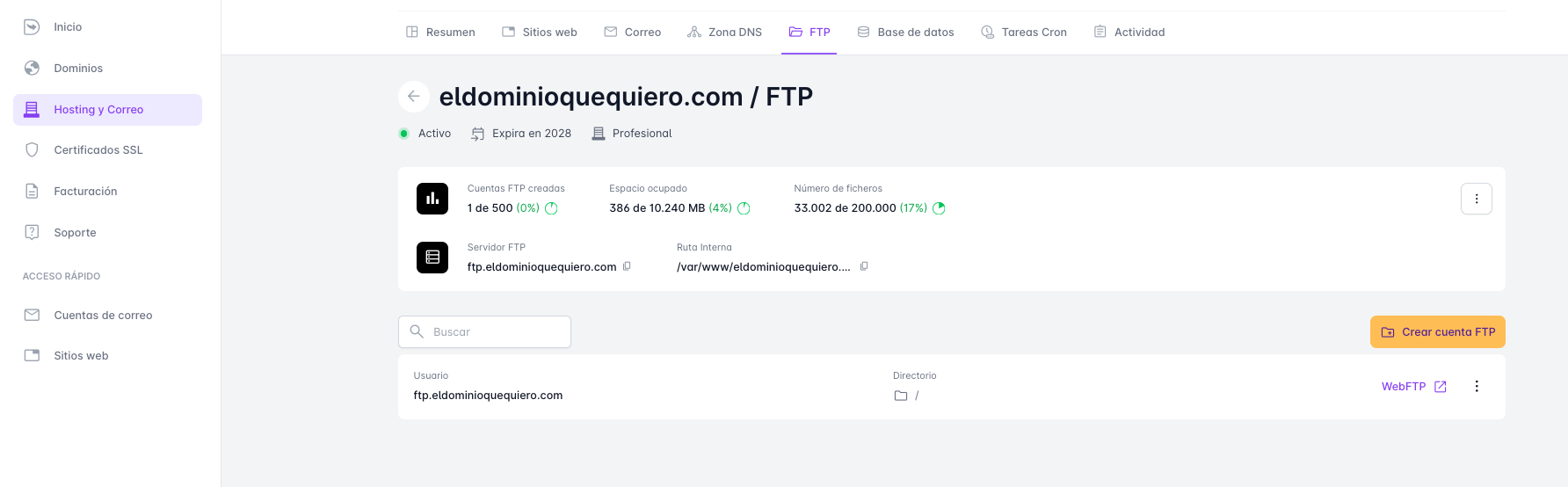
In this section, we will see the WebFTP link, and by clicking it, we will access the files stored in our hosting.
Step 2. Deactivate the plugins/themes
Once inside the FTP, we access the folder where we have installed WordPress (by default, it is the public folder) and within it, go to wp-content. Inside this folder, we will see different folders, the ones that interest us are plugins and themes.
To deactivate the plugins
To deactivate the plugins, we will access the plugins folder and rename all the folders that appear. For example, we will add -disabled to the end of the name.
To rename them, right-click on the folder and select Rename from the dropdown. Modify the name, in this case adding -disabled, and click the OK button to save the change.
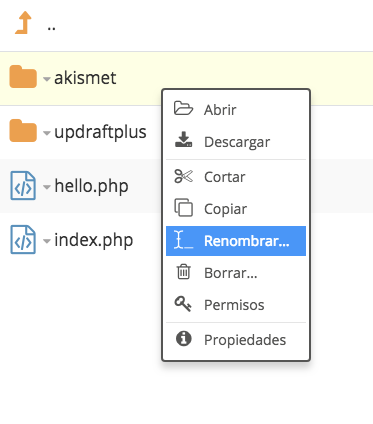
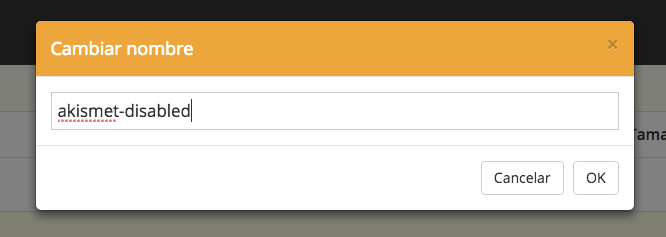
This way, the plugin will be deactivated.
To deactivate the themes
In this case, we will follow exactly the same steps indicated for deactivating the plugins, but instead of accessing the plugins directory, we will go to themes.