Configure SMTP in WordPress
ATTENTION: This help is kept updated on our blog: How to configure SMTP for your WordPress contact form. We recommend accessing the link to find detailed information.
Sending emails from our website is becoming more common every day, whether to receive notifications of new comments, welcome emails when registering, or even purchase confirmations in our online stores created with WooCommerce and similar. Ensuring that these emails are delivered is essential.
In DonDominio's hosting plans, email sending must be done using the SMTP protocol by using an email account from the domain itself; you must create the email account beforehand (for security and antispam reasons, it is not possible to send emails using email accounts hosted on external services).
Access the WordPress administration to start the configuration process.
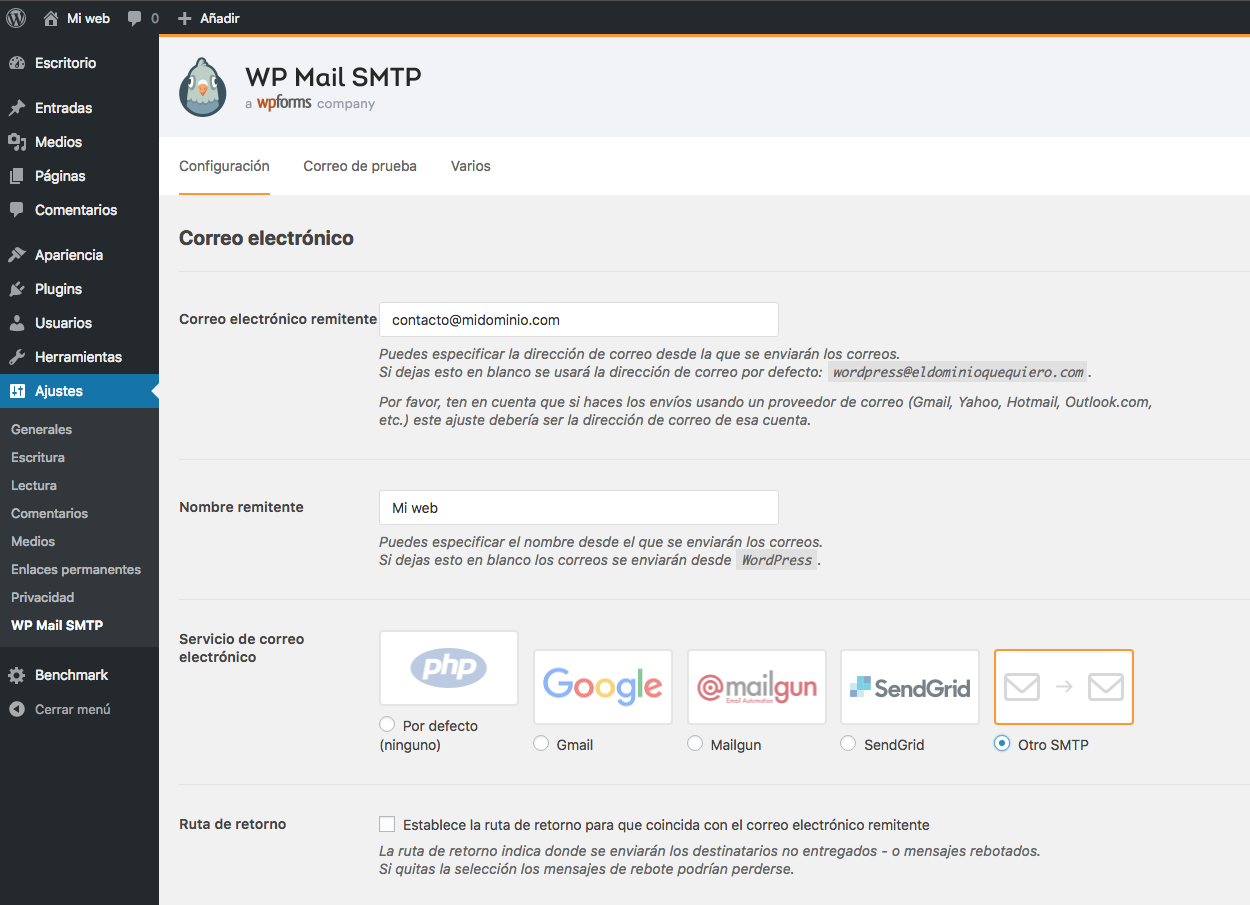
To configure sending via SMTP in WordPress we recommend installing the WP SMTP Mail plugin, activating it will allow us to configure the SMTP sending option with the following data:
- Sender email: Complete email account, for example: contacto@tudominio.com*
- Sender name: The name we want to appear in the sender
Now you should select "Other SMTP" in the "Email service" section and fill in the fields that will appear with:
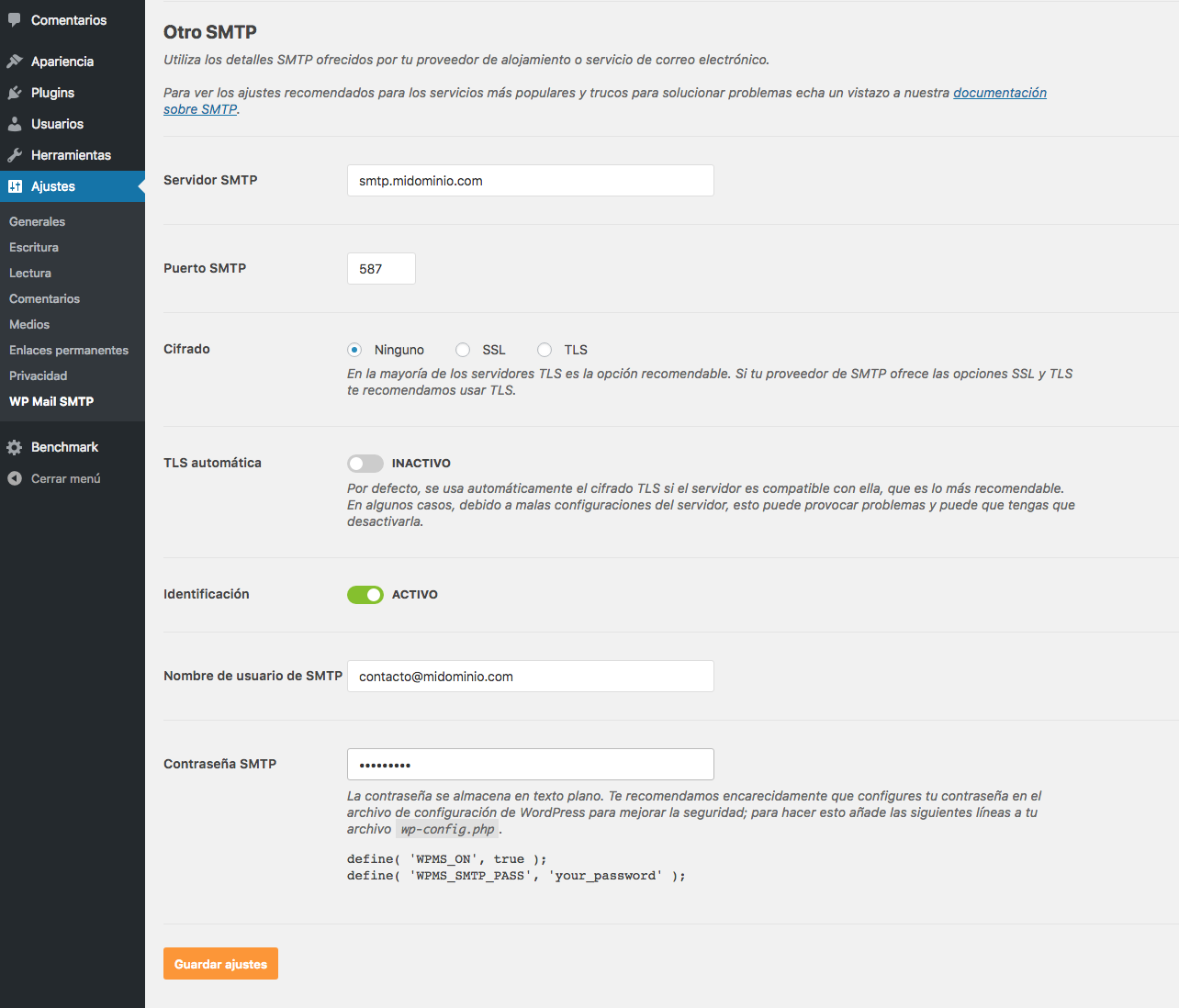
- SMTP Server: smtp.mydomain.com // Remember to change mydomain.com to your domain name
- SMTP Port: 587
- Encryption: NO
- Automatic TLS: DISABLED
- Authentication: Active
- SMTP username: Complete email account, for example: contacto@mydomain.com*
- SMTP Password: Email account password