Push: Transfer domains between accounts
You can transfer domains between DonDominio accounts quickly and easily using our "Domain Push" tool. With this procedure, the domains and any associated hosting (if hosting is available in DonDominio) will be managed from the new client account.
Aspects to consider before performing an internal Push transfer
- The hosting plan and its content will be transferred along with the domain
- Contacts associated with the domain are not modified and are copied to the destination account
- Domains with an Authcode will automatically have a new one
- Once the internal transfer is completed, it cannot be reversed
- If the domain has an active SSL Certificate with DonDominio, its management panel will not be transferred
- If the user receiving the domain is newly created and you encounter an error during the transfer, it is necessary to contact the Support team to confirm that the account has been correctly validated
How do I transfer my domain to another DonDominio client account?
There are two options to transfer domains between user accounts:
Below we detail each of them.
The current manager initiates the domain transfer
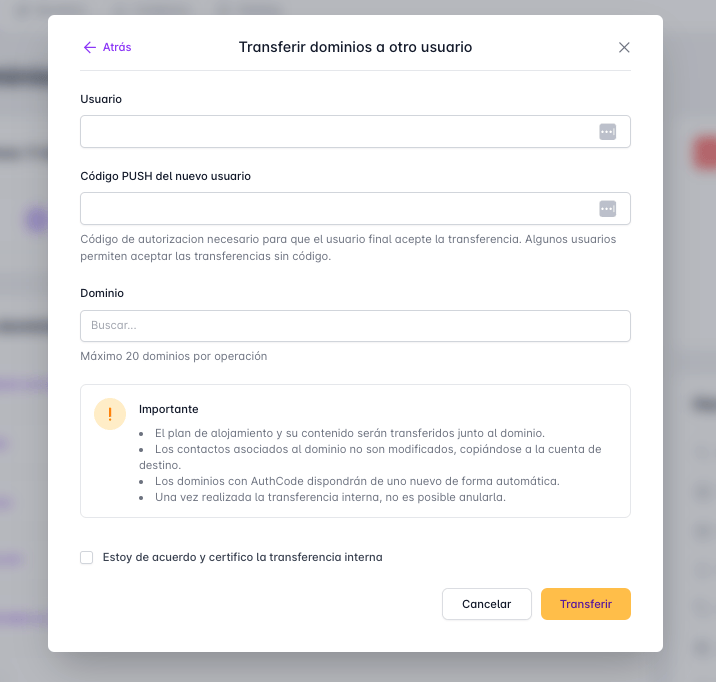
To carry out the domain transfer, we need to know the recipient's username and their Push code. Once you have this information, go to "Domains" -> "Domain Push" in the "Domain Tools" box and select "Transfer domains to another user." Fill in the fields that appear:
- User: indicate here the username that will receive the domain
- New user's Push Code: you must indicate the authorization code provided by the domain recipient
- Domains: you can specify up to 20 domains to transfer, separating them with line breaks, commas, or spaces
Push Code. What is it and how does it work?
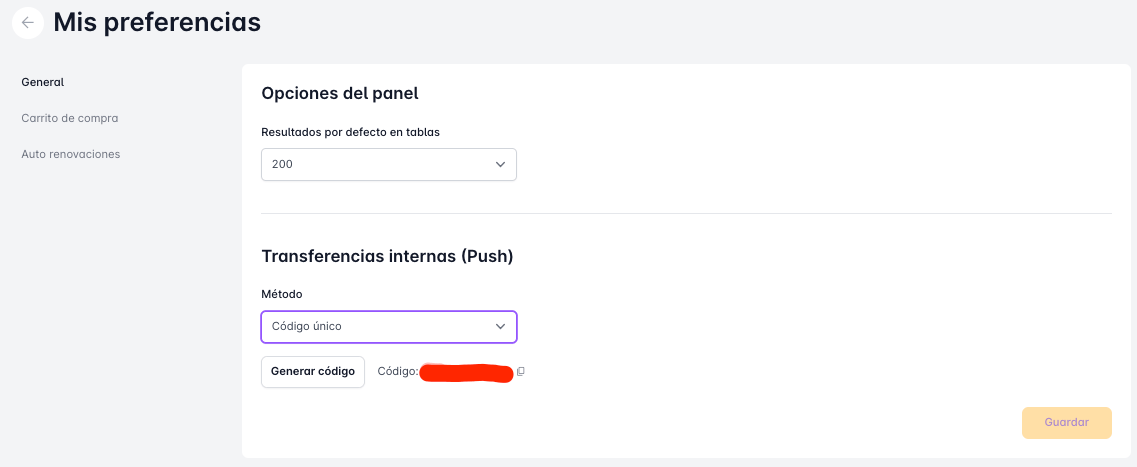
The user receiving the domain will find the Push code in “Account" -> "Preferences" -> "General". This code defines under what circumstances you want to accept internal domain transfers. There are four options available:
- Do not accept any: with this option, all domain transfer requests to our user will be denied
- Unique code: this option creates a code that can be used only once; once used, the system will generate a new one. This option is activated by default. You can manually generate a new code with the "Generate code" button
- Fixed code: the Push code will always be the same; you can customize it or use one generated automatically
- Accept all: this option accepts all internal transfer requests without a code
The receiver requests the domain transfer
If we want to transfer the domain to another DonDominio client, it is possible for the client to request the transfer (similar to a regular transfer with an Authcode). To do this, we must provide the following information to the recipient client:
- Domain name
- Internal transfer code
This can be found in the "Domain Management" section of the panel.
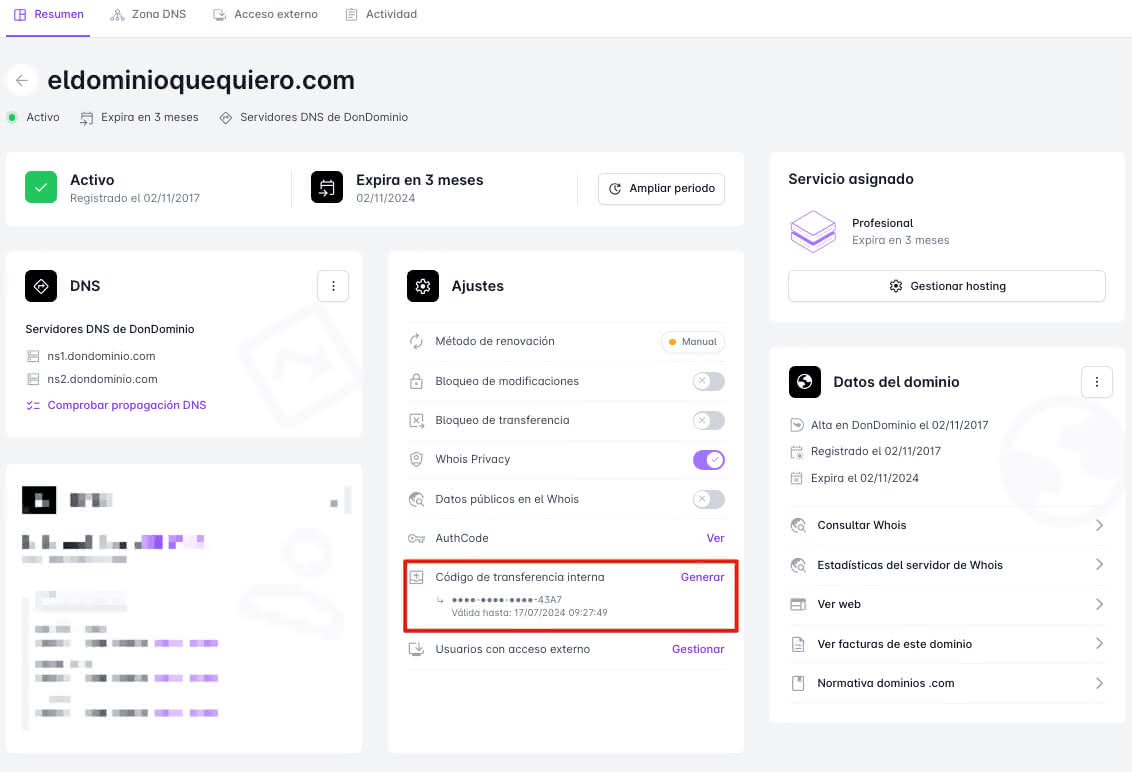
By clicking "Generate," we can view and copy the code, which will be valid for 7 days and can only be copied once. If we close the window, we will need to generate a new code if we have not copied it.
How does the new user request the domain?
The first step is to be a DonDominio client, and if not already, they must register.
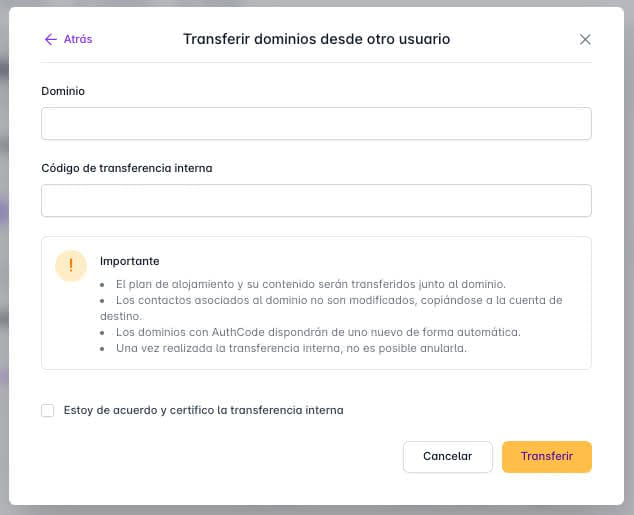
Once logged in, go to "Domains" -> "Domain Push" in the "Domain Tools" box and select "Transfer domains from another client," filling in the "Domain" and "Internal Transfer Code" fields with the information provided previously.