What can you do from your domain management panel?
This panel, as its name indicates, will allow us to perform actions on our domain, from changing its ownership to applying a transfer block.
Next, we will see where to find it, how it is structured and its main sections.
How do I access the panel?
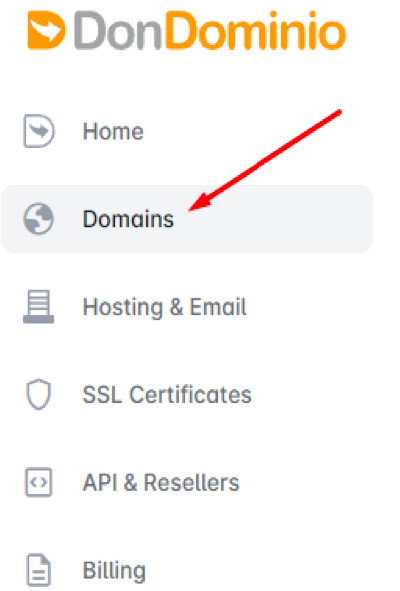
Once logged in DonDominio we can access the domain management area from “Domains” in the side menu.
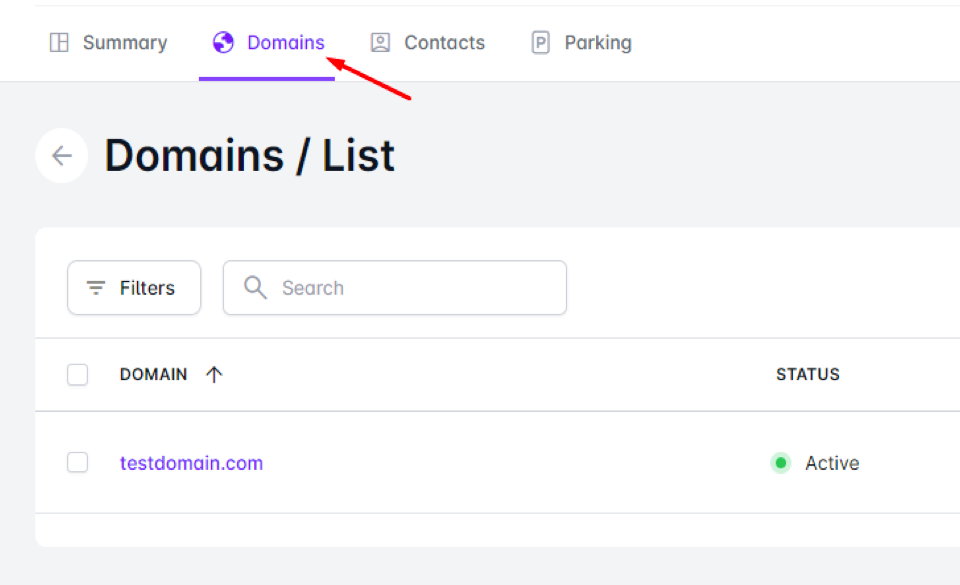
Finally, click on “Domains” in the top menu, a list of our domains will appear and click on the one you want, which will take you directly to the domain panel.
How is the panel structured?
The organisation of the panel is simple, with a menu of main sections located at the top.

And each of these sections has its respective subsections, from which we can carry out different actions.
Sections and subsections of the panel
Summary
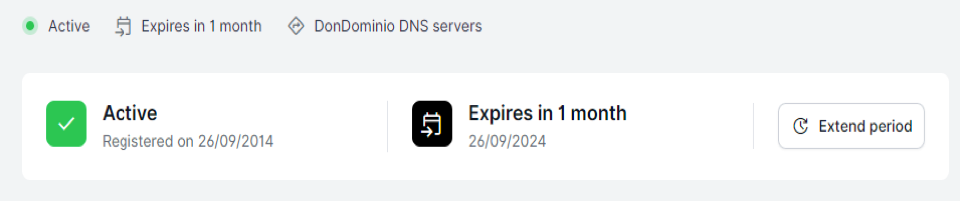
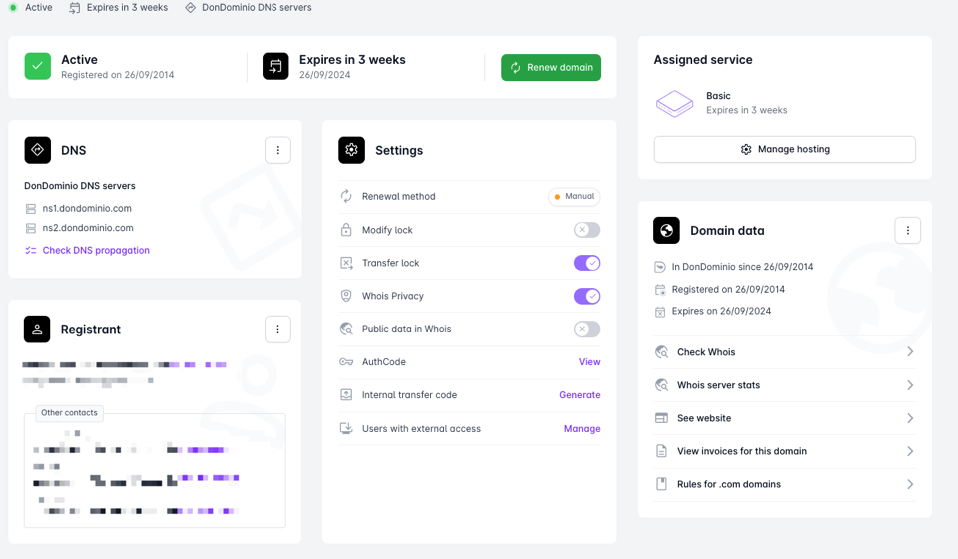
The first section we find when accessing the panel is “Summary”. This section allows us to see a breakdown of the status of the domain at the top, as well as to extend its period or renew it depending on the status of the domain.
There are then four main sections: DNS, Owner, Settings and Domain Data.
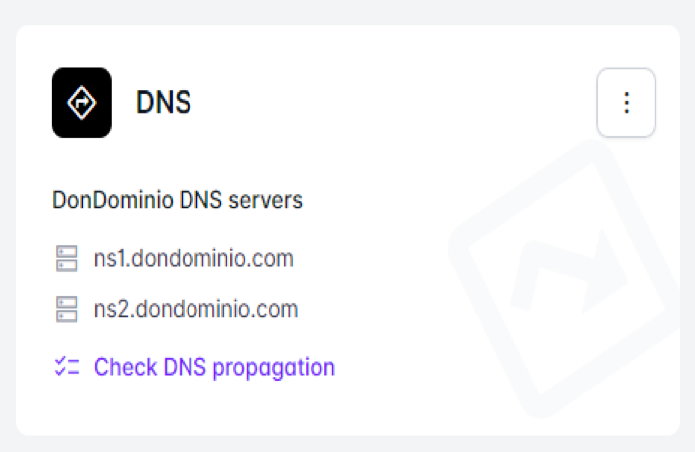
-DNS: From this section we can see the DNS assigned to the domain and check its propagation, however, if we click on the three dots that appear in the upper right corner, we can also “Edit DNS servers”, which will allow us to modify these servers, “Create Glue Records” and “Create DNSSEC entry”.
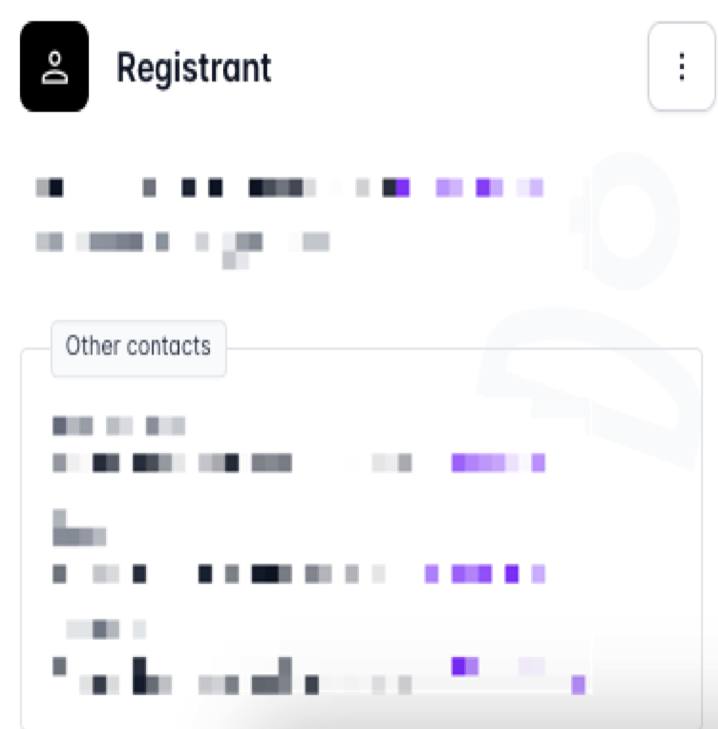
-Registrant: From Registrant we can see the contact details of the domain, both the registrant and the rest of the contacts, and from the options that appear in the three upper points, we can “Edit Registrant”, download a certificate of ownership or edit any of the other contacts of the domain.
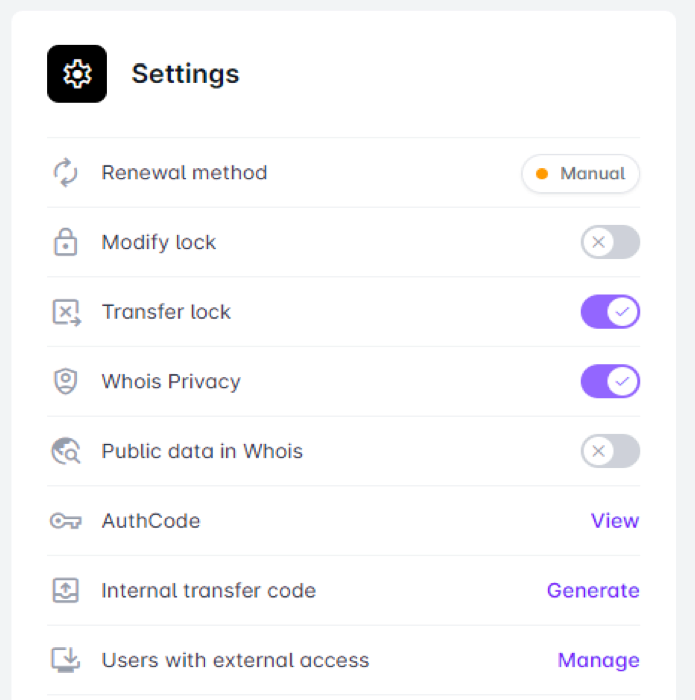
-Settings: This section will allow us to perform different actions on the domain such as change the renewal method, activate/deactivate the modification and transfer blocks, activate/deactivate the different options on the whois privacy, obtain the different transfer codes, either authcode or internal transfer code and manage the users with external access.
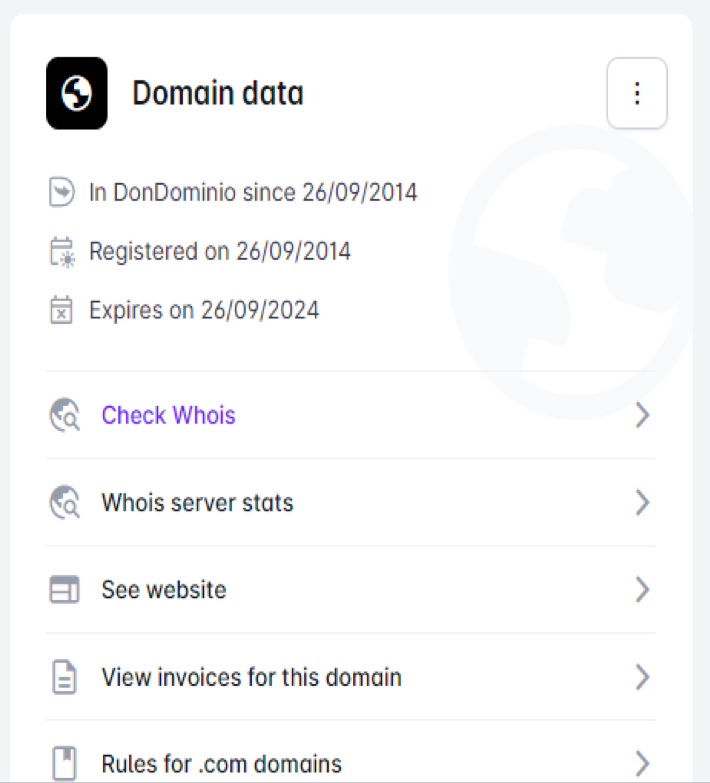
-Domain data: This section has a summary of the important dates of the domain (registration, registration and expiration), as well as a series of quick links to useful actions on the domain. As in the rest of the sections, in the three upper points you have some extra actions such as adding a tag or a comment to the domain.
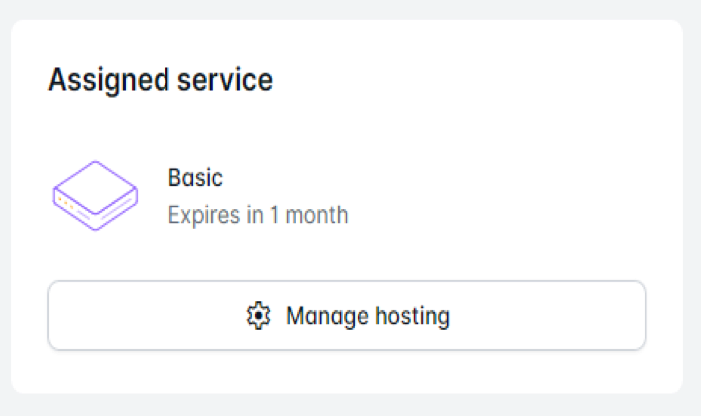
-Assigned service: In addition to the sections indicated, from this panel we will have the option of directly accessing the panel of the service assigned to the domain.
Below is an image of the complete “Summary” section.
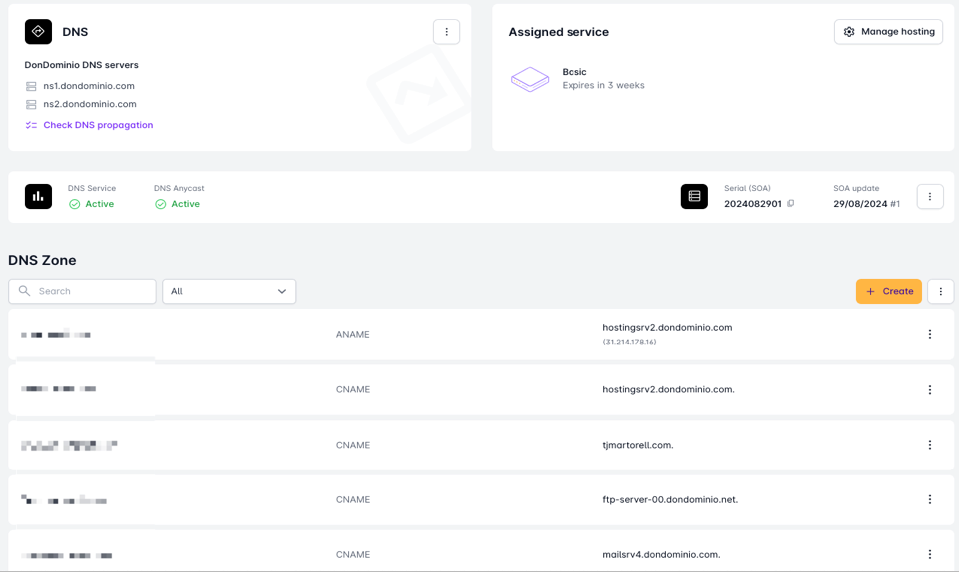
DNS zone
The second section we can see in the top menu is DNS Zone. This section will allow us to see and modify the different records of the zone, such as CNAME, A, MX, SPF, etc...
In addition, we will see a summary of the DNS records we use and the hosting we have.
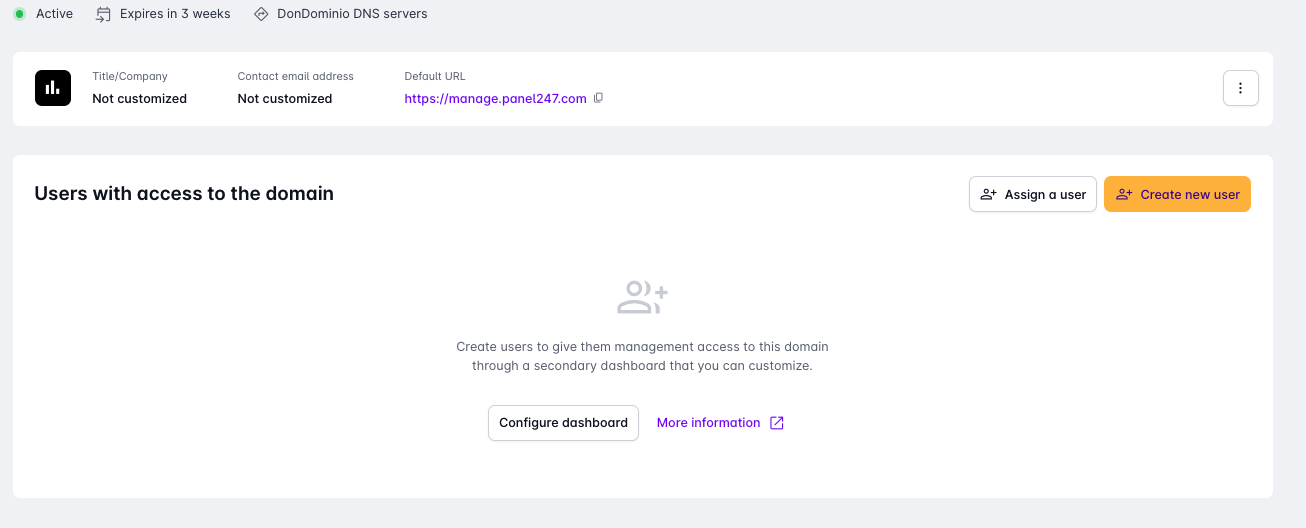
External Access
The next section is External Access. This section will allow us to create users that have access to the domain we want and manage the permissions of each of them.
Activity
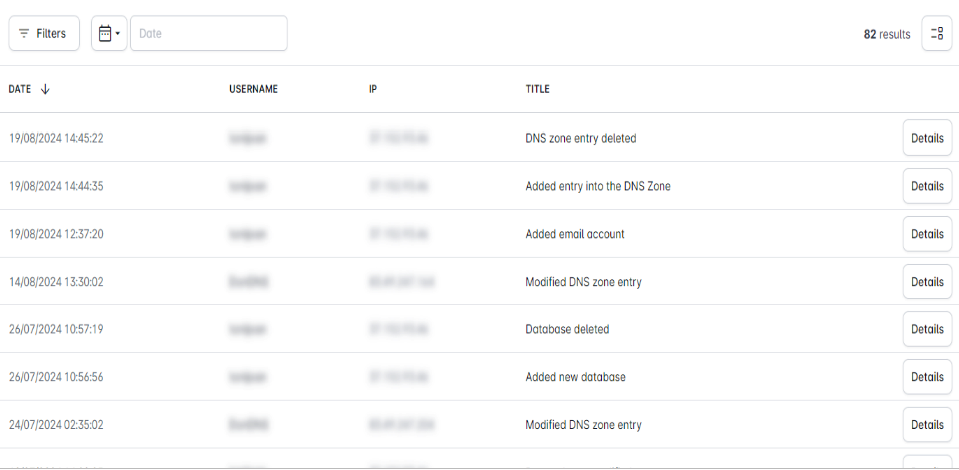
Finally, we have a section called Activity where we will see a summary of the activity carried out on our domain.