
How to use FileZilla
What is Filezilla for?
FileZilla is an FTP client that allows us to connect via this protocol (File Transfer Protocol) with our FTP server.
In this way, we can upload, download, or modify files of our hosting remotely and without needing to access Dondominio for this.
Additionally, operations performed from an FTP client do not have the limitations that an online client like WebFTP might have, so we can handle large files or high numbers of files without issues.
How can I download Filezilla?
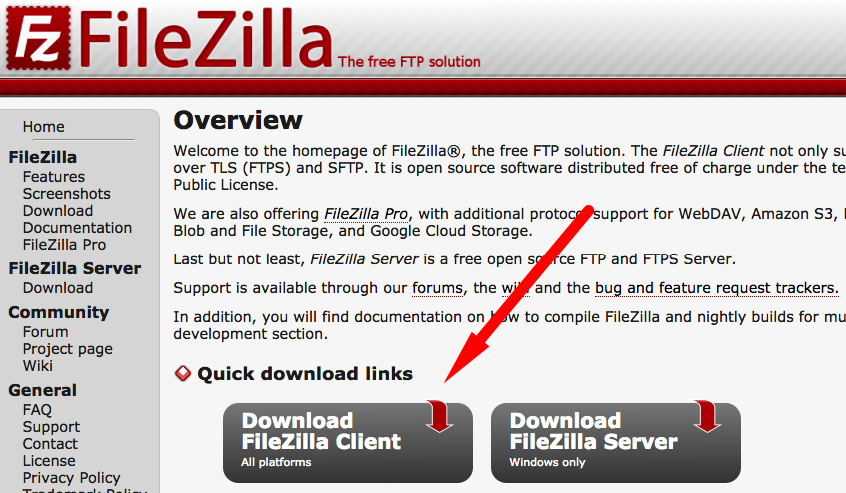
To download FileZilla, we will go to its website and click on the main page, on the button "Download FileZilla Client."
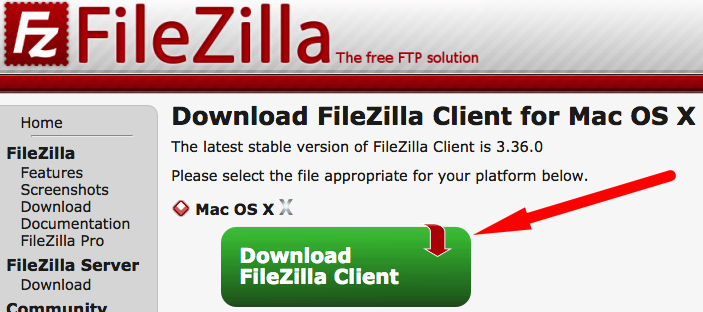
On the next screen, we will click the button with the same name that appears in green.
The text indicating the operating system, in our case MACOSX, changes depending on the system used, there is no intermediate selection step.
Finally, we just need to install it on our device.
How to use FileZilla
FileZilla is a very simple tool to use if we have the necessary FTP connection details; to obtain them, we will have to access our client area, specifically to the hosting management panel, where we will see the FTP Accounts tab with the "Server," "Username," and "Password" data.
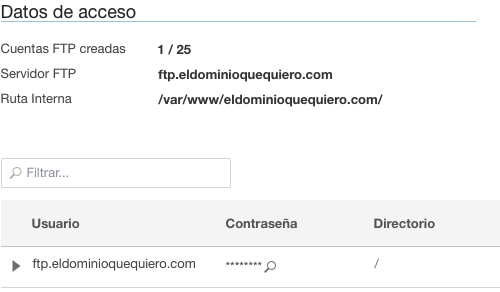
When we open FileZilla, we will see a top bar where we can enter the data obtained earlier:

As we can see, we will enter the "FTP Server" in "Server," the "User" in "Username," the "Password" (We can see it by clicking the magnifying glass) in "Password," and leave the port field empty.

And we will click on "Quick Connect."
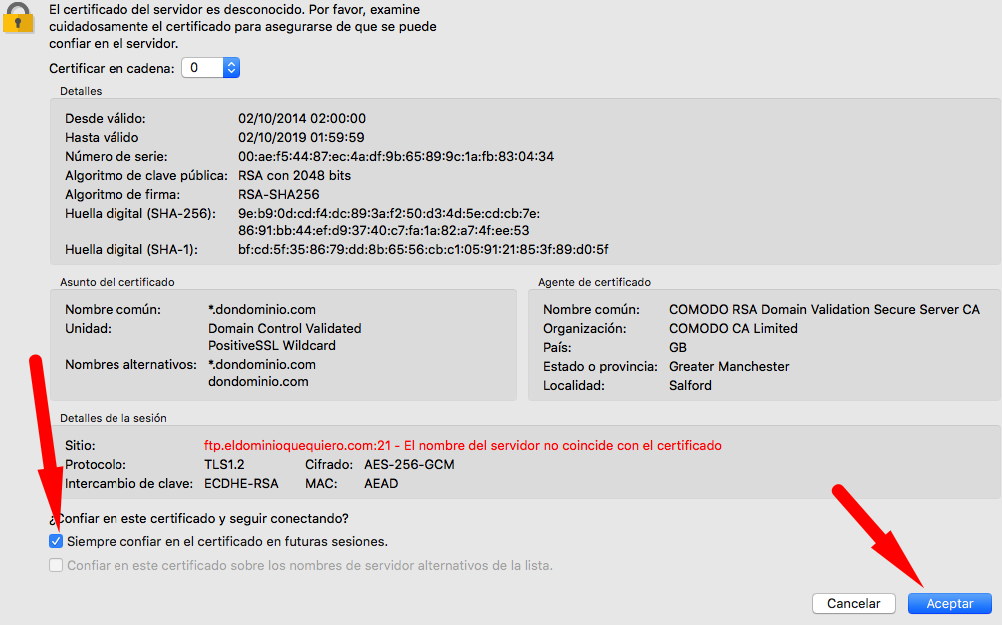
Upon doing so, a message will appear indicating the server is unknown; we will mark the option "Always trust this certificate in future sessions" and click "OK."
If the connection has been established correctly, we will be able to see the correct connection LOG, our local files in "Local Site," and our server files in "Remote Site."
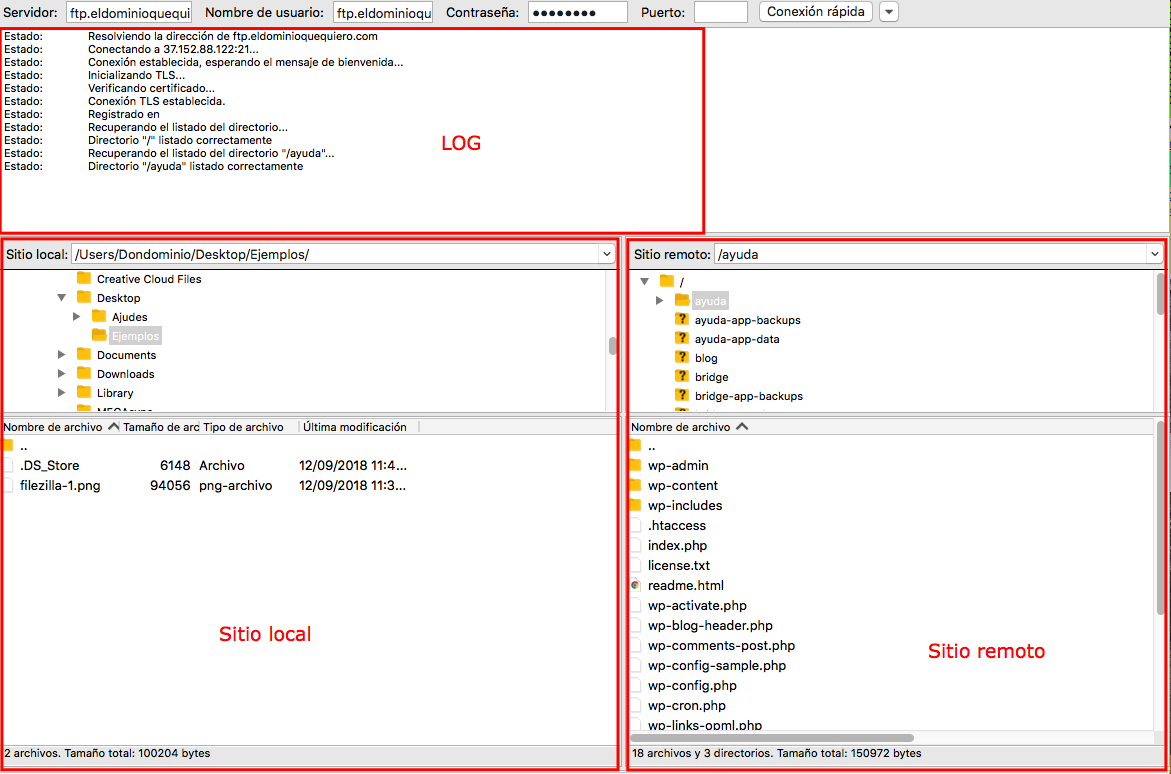
To move files, we simply have to drag them from the local server to the remote server, to the desired folder or vice versa.
Where should I upload my website's files?
By default, we should upload the files and directories that make up our website inside the “public” directory that we will see upon accessing the FTP (if we do not see it or have deleted it by mistake, we can recreate it manually).
If the website needs to operate from a subdomain (subdomain.yourdomain.com), we will have to upload the files to the directory to which the subdomain points.
If the website will operate from a subdirectory (www.yourdomain.com/subdirectory/), we simply need to upload it to the specific subdirectory, for example: /public/subdirectory/. It is important to note that in this case, the subdirectory would have to be created within public.