How to install an SSL certificate on DonDominio
Installing an SSL certificate on your hosting plan is very straightforward. You can install an SSL certificate purchased from us or even an external one. In both cases, you will need a hosting plan to be able to install it.
Step 1: Subscription to the hosting plan
You can subscribe to your hosting plan from the shopping cart when setting up your domain or from your client area if you are already managing the domain with us. You will find more information in the following help guide: How to subscribe to web hosting.
Step 2: Subscription to the SSL certificate
At DonDominio: You can subscribe to your SSL certificate from the SSL Certificates section of our website, always at the best market price.
External Certificate: If you purchased your SSL certificate from another provider, you can also use it with your hosting plan contracted with us. You will simply need to have the certificate, the SSL key, and the Certificate Authority (CA) certificates; these data will be provided by your provider where you purchased the certificate.
Step 3: Associate the SSL certificate with the domain
Now you only need to associate the contracted SSL certificate with your domain, whether it's your main page or a subdomain (in case it was contracted for one). Follow these steps:
- Go to the "Subdomains" tab of the hosting plan.
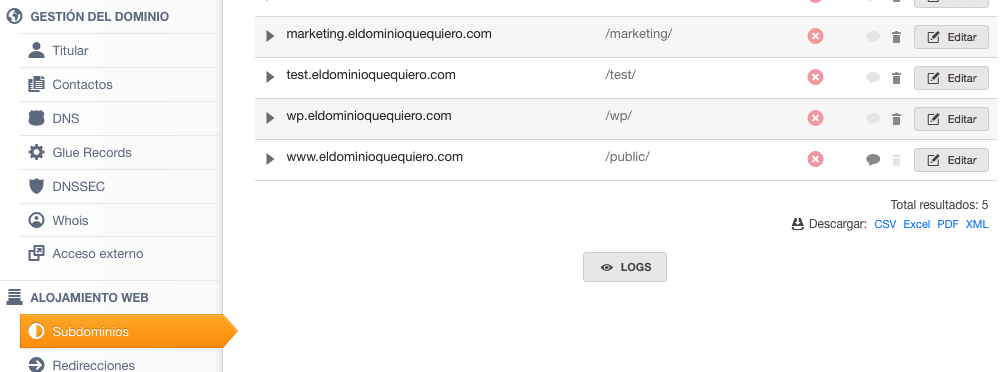
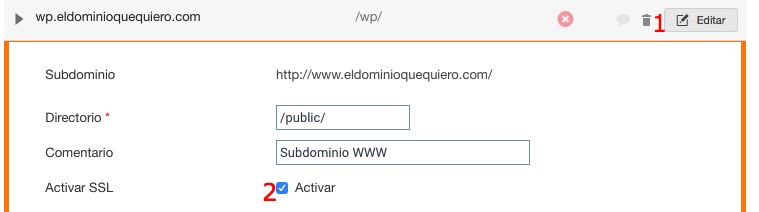
- Click on the "Edit" button that appears to the right of the subdomain where you want to activate the SSL certificate (in the case of Wildcard SSL Certificates, you will need to repeat this procedure for each desired subdomain) and click on the "Activate SSL" option.
-
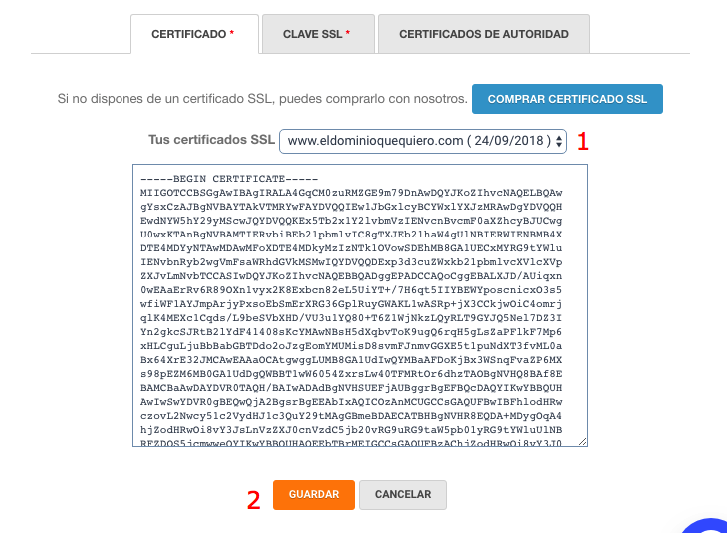
You will now see the option to specify a "Directory (SSL)", which normally does not need to be modified. Below, you will see the tabs "Certificate", "SSL Key", and "Certificate Authority". If you have subscribed to SSL with us, you can select it from the selector on the right; doing so will automatically fill in those sections. If using an SSL contracted externally, you will need to add the information in each section.
-
Finally, click the "Save" button and wait 30-40 minutes. This way, it will start working under https. If you want your page to always work under SSL, follow the steps in our help guide: Always force the use of SSL