Set up a passkey
You can create a passkey to access your Customer Area without needing to enter your username and password each time. To do this, log in and go to "Account > Security"; at the end of this page, you will see the "Access Keys" section, where you will find the option to set up new keys and the list of all the ones already created.
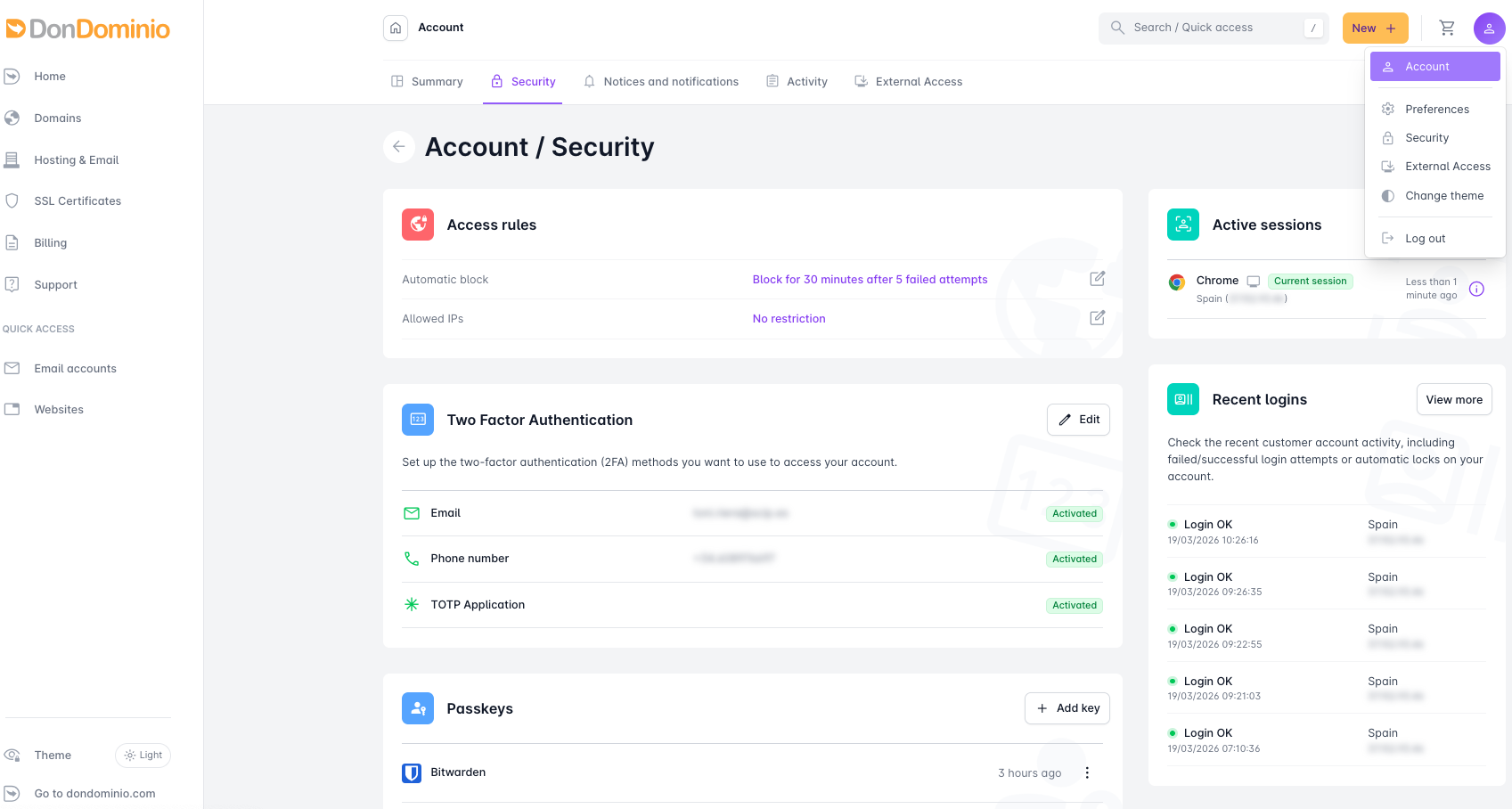
Clicking on "+ Add Key" will bring up a pop-up window with options to add it locally in the browser you are using or on another device. This process varies depending on the browser used; the following explanation is based on Google Chrome.
If we click the "Continue" button, we will save the key locally on this device, so we will still need the username and password to access from other devices. If you prefer to save it on another device or in our browser profile, choose "Save another way" and select the option you prefer.
To save it on a phone or tablet, a QR code will appear that we must scan with the device's camera, and the option to save it will be displayed. If that device has a password manager installed, such as LastPass, Bitwarden, etc., they detect the process and offer to save them directly in their applications.
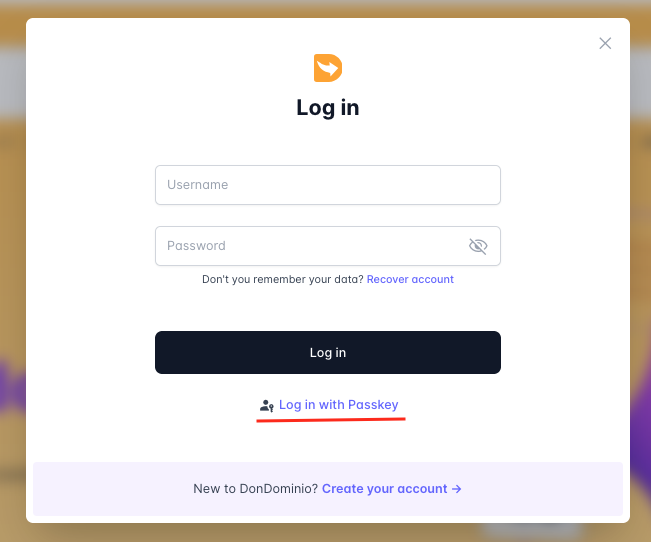
With these simple steps, we will have configured our access key and can use it to access DonDominio by selecting "Log in with passkey.